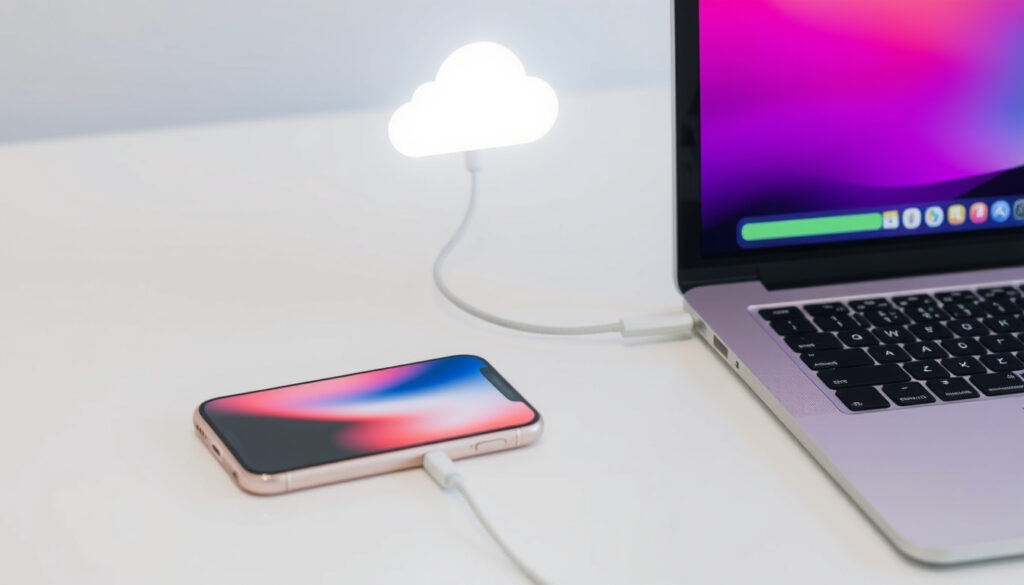
How to Backup iPhone: Complete iCloud and Computer Guide
Any iPhone owner knows the sinking feeling of a lost or damaged device. Your photos, messages, settings, and app data are all at risk without a backup. This guide walks through the official Apple methods — iCloud and computer backups — so you can protect your data without confusion.
iCloud backups occur automatically daily Automatic when connected to Wi-Fi, power, and locked ·
Computer backups can be encrypted Encryption includes health data and passwords ·
Free iCloud storage 5 GB per Apple ID ·
Backup includes most data except synced content Photos (if iCloud Photos off), messages, settings, app data
Quick snapshot
- iCloud backup requires Wi-Fi and power (Apple Support – Back up iPhone)
- Computer backup via iTunes/Finder is official (Apple Support – How to back up your iPhone or iPad with your Mac)
- Encrypted backup includes health and passwords (Apple Support – How to back up your iPhone or iPad with your Mac)
- Reliability of third-party backup tools
- Effectiveness of backup without iTunes
- Future changes to Apple’s backup policies
- Automatic iCloud backup occurs daily when conditions met (Apple Support – Back up iPhone)
- Computer backup can be done manually anytime (Apple Support – Back up iPhone)
- Restore from iCloud or computer backup (Apple Support – Restore from backup)
- Manage iCloud backups (Apple Support – View and manage backups)
Here is how the two primary backup methods compare in key specifications.
| Fact | Value |
|---|---|
| iCloud backup frequency | Daily when conditions met |
| Computer backup storage | Local hard drive or external drive |
| Encryption support | Yes, for health data and passwords |
| Restore options | From iCloud or computer backup |
The implication: iCloud is hands-off but capped; computer backup gives you full control and encryption.
How do I backup my entire iPhone?
What does an iPhone backup include?
- An iPhone backup saves your photos, messages, app data, device settings, and more (Apple Support – Back up iPhone).
- It does not include content synced from your computer (like music or books) or iCloud Photos if that feature is on (Apple Support – Restore from backup).
How to enable automatic iCloud backup
- Go to Settings > [your name] > iCloud > iCloud Backup and toggle it on (Apple Support – Back up iPhone).
- Your iPhone will then back up daily when connected to Wi-Fi, power, and locked (Apple Support – Back up iPhone).
How to perform a manual backup
- In the same iCloud Backup settings, tap Back Up Now (Apple Support – Back up iPhone).
- Keep the device connected to Wi-Fi until the backup finishes.
The automatic backup only runs if your iPhone is locked, plugged in, and on Wi-Fi. If you skip those conditions, days can pass without a fresh backup. Check the date of your last backup in Settings > iCloud > iCloud Backup.
The catch: iCloud convenience comes with a tight storage limit — 5 GB — that many users outgrow quickly.
How do I backup my iPhone to iCloud?
How to turn on iCloud Backup
- Open Settings > [your name] > iCloud > iCloud Backup and switch it on (Apple Support – Back up iPhone).
- Then tap Back Up Now for an immediate backup (Apple Support – Back up iPhone).
How to back up iPhone to iCloud on computer
- You can also manage iCloud backups from a Mac: open System Settings, click your Apple Account, select iCloud, then Manage > Backups (Apple Support – View and manage iCloud device backups).
- This lets you see and delete old backups, but creating a new backup still happens on the iPhone.
iCloud backup storage limits
- Every Apple ID gets 5 GB of free iCloud storage (Apple Support – iCloud).
- If your backup exceeds 5 GB, you’ll need to upgrade to iCloud+ (50 GB, 200 GB, or 2 TB) or free up space by deleting old backups (Apple Support – View and manage iCloud device backups).
iCloud backup is convenient — it runs automatically — but the free 5 GB limit fills up fast. A single iPhone backup often uses 2-4 GB, especially if you have lots of photos. You may need to buy storage or switch to computer backups.
The pattern: iCloud works best as an automatic safety net, but the free tier may push you toward paid storage or a computer backup.
How do I backup my iPhone to my computer?
Backup iPhone to Mac using Finder
- Connect your iPhone to your Mac via USB cable. Open Finder, select your iPhone in the sidebar, click Back Up Now (Apple Support – How to back up your iPhone or iPad with your Mac).
- You may need to tap Trust on both the Mac and iPhone the first time (Apple Support – How to back up your iPhone or iPad with your Mac).
Backup iPhone to Windows PC using iTunes
- On Windows, use iTunes (or the Apple Devices app on newer setups). Connect your iPhone, select the device icon, and click Back Up Now (Apple Support – Back up iPhone).
- For encrypted backups (which include health data and passwords), check Encrypt local backup and set a password (Apple Support – How to back up your iPhone or iPad with your Mac).
How to backup iPhone to computer without iTunes
- The only official method without iTunes is using Finder on Mac (macOS Catalina or later) or the Apple Devices app on Windows (Apple Support – Back up iPhone).
- Third-party tools exist but Apple does not endorse them, and their reliability varies (Apple Support – How to back up your iPhone or iPad with your Mac).
What this means: For users who want a complete, encrypted backup without recurring costs, the computer method is the most reliable route.
How do I backup my iPhone without iCloud?
Backup to computer via iTunes/Finder
- Without iCloud, the only official method is a computer backup using Finder (Mac) or iTunes (Windows) (Apple Support – Back up iPhone).
- This creates a full backup on your local drive, with no internet required (Apple Support – How to back up your iPhone or iPad with your Mac).
Using third-party backup software
- Some third-party tools claim to back up iPhones without iTunes, but Apple warns that encrypted backups cannot be recovered without the backup password (Apple Support – How to back up your iPhone or iPad with your Mac).
- Always verify the reputation of any third-party software before use.
Manual backup without iCloud
- Turn off iCloud Backup in Settings > iCloud > iCloud Backup, then rely on computer backups (Apple Support – Back up iPhone).
- You can also manually back up by connecting to a computer and clicking Back Up Now.
The pattern: Going iCloud-free means committing to manual, wired backups — but you gain full control over your data and avoid monthly storage fees.
Does backing up my iPhone save everything?
What is included in an iPhone backup?
- An iPhone backup includes app data, device settings, messages, photos (if iCloud Photos is off), and most other personal data (Apple Support – Back up iPhone).
- Encrypted backups also include Health data, passwords, and Wi-Fi settings (Apple Support – How to back up your iPhone or iPad with your Mac).
What is not included in an iPhone backup?
- Content synced from your computer (music, movies, books) is not included (Apple Support – Restore from backup).
- iCloud Photos, Apple Pay cards, Face ID settings, and some health data (unless encrypted) are also excluded (Apple Support – How to back up your iPhone or iPad with your Mac).
Difference between backup and sync
- Backup copies your device state for restoration; sync transfers specific content (like music or photos) between devices (Apple Support – Back up iPhone).
- Syncing is not a substitute for a backup.
The implication: A backup is a snapshot of your device, not a mirror of everything you own — know what is missing to avoid surprises during a restore.
Upsides
- iCloud backup runs automatically — no effort needed (Apple Support)
- Computer backup can be encrypted for full data protection (Apple Support)
- Computer backup works offline and doesn’t use iCloud storage (Apple Support)
- Restoring from a backup is straightforward (Apple Support)
Downsides
- Free iCloud storage is only 5 GB — often insufficient (Apple Support)
- Computer backups require a cable and manual initiation (Apple Support)
- Encrypted backup password cannot be recovered if lost (Apple Support)
- Restoring from a computer backup requires disabling Find My (Apple Support)
How to backup your iPhone step by step
Method 1: iCloud backup (automatic or manual)
- Connect your iPhone to Wi-Fi and plug it into power.
- Go to Settings > [your name] > iCloud > iCloud Backup.
- Toggle on iCloud Backup (for automatic) or tap Back Up Now (for manual) (Apple Support – Back up iPhone).
- Wait for the backup to complete — keep the device connected to Wi-Fi.
Method 2: Computer backup (Mac)
- Connect your iPhone to your Mac via USB cable.
- Open Finder and select your iPhone in the sidebar.
- Click Trust if prompted on both devices.
- Under Backups, choose Back up all of the data on your iPhone to this Mac.
- Check Encrypt local backup if you want to include passwords and health data, then set a password (Apple Support – How to back up your iPhone or iPad with your Mac).
- Click Back Up Now.
Method 3: Computer backup (Windows PC)
- Install the latest version of iTunes (or the Apple Devices app).
- Connect your iPhone via USB cable.
- Open iTunes and select the device icon near the top left.
- Under Backups, choose This computer.
- Check Encrypt local backup if desired, then click Back Up Now (Apple Support – Back up iPhone).
The pattern: Following these steps in order minimizes the risk of missing a critical setting — especially the encryption toggle for health data and passwords.
Confirmed facts and what remains unclear
Confirmed facts
- iCloud backup requires Wi-Fi and power connection (Apple Support)
- Computer backup via iTunes/Finder is the official wired method (Apple Support)
- Backup includes most settings, app data, photos (if iCloud Photos off), and messages (Apple Support)
- Encrypted backup includes health data and passwords (Apple Support)
What remains unclear
- Reliability of third-party backup tools — not officially vetted by Apple
- Effectiveness of backup methods that bypass iTunes
- Future changes to Apple’s backup policies and storage limits
“iCloud backup is the easiest way to back up your iPhone automatically.”
Apple Support – iCloud (official guidance)
“Apple warns that an encrypted backup cannot be recovered without the backup password.”
Apple Support – How to back up your iPhone or iPad with your Mac (safety warning)
For iPhone users in the US, the choice is clear: use iCloud for automatic daily backups (and pay for extra storage if needed), or use a computer backup for a full, encrypted copy. Without a backup, a lost or damaged iPhone means losing irreplaceable photos, messages, and settings — a risk no one should take.
support.apple.com, youtube.com, support.apple.com, support.apple.com, support.apple.com, support.apple.com
Frequently asked questions
Will I lose anything if I backup my iPhone?
No, backing up does not delete any data. It creates a copy of your current data. You can restore from the backup later without losing anything (Apple Support).
Will backing up my iPhone delete everything?
No. A backup is a safe copy. Deleting your iPhone’s content (e.g., before a restore) is a separate action (Apple Support).
What is the easiest way to backup your iPhone?
iCloud backup is the easiest because it runs automatically when your iPhone is locked, charging, and on Wi-Fi. Just turn it on in Settings once (Apple Support).
What is the best way to backup my iPhone?
The best method depends on your needs. For convenience, iCloud backup. For a full, encrypted backup that includes health data and passwords, use a computer backup via Finder or iTunes (Apple Support).
How often should I backup my iPhone?
Apple recommends backing up regularly — ideally daily through iCloud, or at least weekly via computer. Before any major iOS update or device replacement, always back up (Apple Support).
Can I backup my iPhone without Wi-Fi?
Yes, using a computer backup (Finder or iTunes) does not require Wi-Fi. The backup is saved locally via USB cable (Apple Support).
More related posts
 Summa Cum Laude Meaning: GPA, Requirements, and Comparison
 LTA Car Plate Bidding – Full Guide and Latest Updates
 Best Online Savings Account Ireland 2025: Compare 3.5% Rates
 Marvel Movies in Order: Release vs Chronological Guide
 Ramadan 2026: Start Date, Fasting Rules & Eid
 Hindi to English Translation: Comparing 5 Free Tools
 Infinix GT 20 Pro: Specs, Gaming Review, Price & Performance