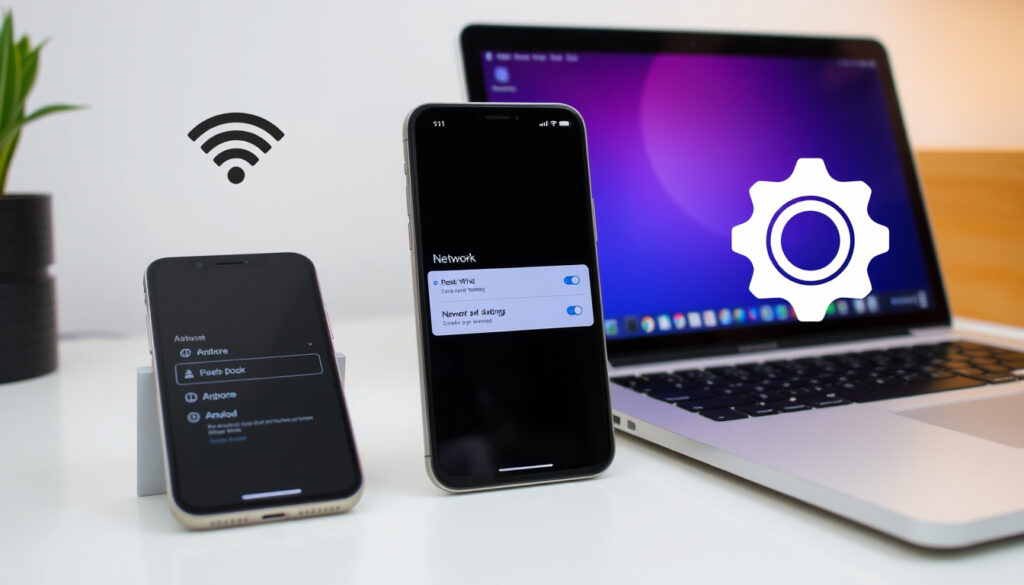
How to Reset Network Settings on iPhone, Android, Windows
Few things are more frustrating than a phone that refuses to stay connected to Wi‑Fi or a Bluetooth device that drops out mid‑call. The network settings reset is a surprisingly gentle fix—it clears the glitches without touching your photos, messages, or apps. You’ll find the exact steps for iPhone and Android, a clear breakdown of what you lose and what you keep, and when a simple reboot beats a full reset.
Saved Wi‑Fi networks cleared: Yes · Bluetooth pairings cleared: Yes · Personal files (photos, contacts): Not affected · Cellular APN settings: Reset to default
Quick snapshot
- Resetting network settings erases saved Wi‑Fi networks and Bluetooth pairings (Apple Support (official device documentation))
- Personal data like photos and apps stays untouched (YouTube (Android walkthrough))
- Whether resetting improves performance equally on all devices
- Exact menu labels for every Android manufacturer variant
- No fixed schedule; reset only when persistent connectivity issues arise
- Reconnect Wi‑Fi, re‑pair Bluetooth devices, and re‑enter any VPN credentials after reset
Here’s a quick breakdown of what changes and what stays.
| Setting | Effect of network reset |
|---|---|
| Personal data (photos, contacts, apps) | None |
| Saved Wi‑Fi passwords | Removed |
| Cellular APN | Reset to default |
| Bluetooth devices | Unpaired |
Four categories, one pattern: the reset acts like a clean slate for connectivity settings while leaving your files and apps alone.
How do I reset network settings?
The exact steps differ by platform, but the principle is the same: the operating system separates network‑related settings from personal data so you can wipe one without touching the other. On iPhone, Apple’s official path is Settings > General > Transfer or Reset iPhone > Reset > Reset Network Settings (Apple Support (official device documentation)). Android users will find the option under Settings > System > Reset options > Reset network settings, though menu names vary by manufacturer and OS version (Google Android Help (first‑party guidance)). On Windows, go to Settings > Network & Internet > Advanced network settings > Network reset (Microsoft Support (Windows documentation)).
What happens when you reset network settings?
- All saved Wi‑Fi networks and their passwords are wiped.
- Bluetooth pairings — earbuds, speakers, car systems — are removed.
- VPN configurations are erased.
- Cellular settings (APN, preferred network type) revert to factory defaults (UPeSIM (carrier‑settings guide)).
- Your photos, messages, contacts, and installed apps remain untouched.
If a glitchy network is driving you crazy and a simple restart hasn’t helped, resetting network settings is the next logical step — the trade‑off is a few minutes of re‑entering passwords, not a lost photo library.
The pattern is clear: a network reset is a surgical tool for connectivity problems, not a sledgehammer for your data.
When should you reset network settings?
Consider a network reset when you experience persistent Wi‑Fi dropouts, Bluetooth that won’t connect, mobile data that refuses to work, or after a major OS update that introduces connectivity bugs (Times of India (consumer tech guide)). Skip it for temporary issues — a reboot is safer and faster.
How do I reset network settings on Android?
Android’s reset path isn’t always in the same place because manufacturers add their own skins (One UI, OxygenOS, XOS). Here’s how to navigate the most common versions.
Samsung (One UI)
- Open Settings > General management > Reset.
- Tap Reset network settings.
- Enter your PIN, password, or biometrics.
- Confirm and let the device restart (Times of India (consumer tech guide)).
OnePlus (OxygenOS)
Settings > System > Reset options > Reset Wi‑Fi, mobile & Bluetooth. This clears the same categories as a full network reset (Google Android Help (first‑party guidance)).
Infinix (XOS)
Settings > System > Reset > Reset network settings. The steps mirror stock Android, but the restart prompt may appear without asking for confirmation (YouTube (Android walkthrough)).
How to reset on iPhone
On iOS 15 and later: Settings > General > Transfer or Reset iPhone > Reset > Reset Network Settings. You’ll be asked for your iPhone passcode and, if enabled, your Screen Time passcode. The device name resets to “iPhone” (Apple Support (official device documentation)). Older iOS versions use Settings > General > Reset (UPeSIM (carrier‑settings guide)).
How to reset on Windows 10/11
Go to Settings > Network & Internet > Advanced network settings > Network reset. Windows will remove all network adapters and reinstall them, then prompt you to restart (Microsoft Support (Windows documentation)).
The steps vary by device, but the principle remains the same: clear network settings without touching personal data.
Will I lose anything if I reset network settings?
Yes and no. The table below spells out exactly what goes and what stays.
| Data type | Affected? |
|---|---|
| Saved Wi‑Fi networks (passwords) | Yes — removed |
| Bluetooth pairings | Yes — unpaired |
| VPN configurations | Yes — erased |
| Cellular APN settings | Yes — reset to default |
| Photos, videos, contacts | No |
| Installed apps and app data | No |
| Device passcode and biometrics | No |
Seven categories, one pattern: only network‑related configurations are wiped; your personal files and core device security stay intact.
What data is affected?
- Wi‑Fi network names and passwords.
- Bluetooth device list.
- VPN profiles.
- Cellular APN and network selection (UPeSIM (carrier‑settings guide)).
What data is not affected?
- Photos, videos, and music.
- Contacts and call logs.
- Text messages and iMessages (or the Android equivalent).
- Apps and their data.
- Device settings like wallpaper, ringtone, and display brightness.
After a reset you’ll need to reconnect to each Wi‑Fi network and re‑pair Bluetooth devices. That’s a minor inconvenience — keep a list of your Wi‑Fi passwords handy before you begin.
Which is better, reboot or reset?
The two are often confused, but they solve entirely different problems. Here’s a direct comparison.
| Reboot (restart) | Network reset | |
|---|---|---|
| What it does | Turns device off and on, clears temporary glitches | Clears all network‑related settings and returns them to factory defaults |
| Time required | 30 seconds to 2 minutes | 2–5 minutes (plus re‑setup) |
| Loss of settings | None | Wi‑Fi passwords, Bluetooth pairings, VPNs, cellular APN |
| Effect on personal data | None | None |
| When to use | First step for any connectivity hiccup | Persistent issues after reboot fails |
| Safety | 100% safe | Safe for hardware, temporary inconvenience |
Six dimensions, one trade‑off: reboot is the safer, quicker option that costs nothing; reset is the deeper fix that costs you a few minutes of reconfiguration.
What is a reboot?
A reboot (or restart) simply powers the device down and back up. It clears the memory (RAM) and stops background processes that may be interfering with connectivity. No settings are changed. It’s the recommended first troubleshooting step for any connectivity issue (Apple Support (official device documentation)).
What is a network reset?
A network reset goes much deeper. It deletes saved Wi‑Fi networks, forgets Bluetooth devices, erases VPN configurations, and resets cellular APN settings. The device restarts automatically after the procedure on Android (Times of India (consumer tech guide)). On iPhone, you’ll need to restart manually (YouTube (iPhone walkthrough)).
When to use each?
- Use reboot first — for temporary glitches like slow Wi‑Fi or a dropped Bluetooth connection.
- Use reset only after a reboot fails to resolve persistent issues: repeated “no internet” messages, inability to connect to any Wi‑Fi network, or mobile data not working at all.
Choosing between reboot and reset depends on the severity and persistence of the problem.
Is it safe to reset your network settings?
Yes — it poses no risk to the device hardware or your personal data. The inconvenience is entirely about re‑entering passwords and re‑pairing devices. Still, a few precautions make the process smoother.
Upsides
- Clears stubborn connectivity bugs
- No personal data loss
- Reversible (you can always reconnect)
Downsides
- Must re‑enter Wi‑Fi passwords
- Bluetooth devices need re‑pairing
- Custom APN settings (e.g., for MMS) are lost and must be re‑entered
Potential risks
The main risk is losing access to a cellular network if you rely on custom APN settings from your carrier. Before resetting, note down your current APN details from Settings > Mobile Network > Access Point Names (UPeSIM (carrier‑settings guide)).
Benefits
Resetting often resolves issues that a reboot cannot: corrupted network configuration files, misconfigured proxy settings, or stuck IP addresses. It’s the recommended step before resorting to a factory reset (Google Android Help (first‑party guidance)).
Precautions
- Backup Wi‑Fi passwords (many devices let you view saved passwords).
- Write down custom APN settings.
- Make a note of your Bluetooth accessories so you can re‑pair quickly.
If you have an eSIM, resetting network settings typically does not remove the eSIM profile, but it may reset the preferred network selection. Check with your carrier if you experience activation issues afterward.
With proper precautions, the risk is minimal.
What’s confirmed and what’s unclear
Confirmed facts
- Resetting network settings removes saved Wi‑Fi networks and Bluetooth pairings (Apple Support (official device documentation)).
- It does not delete photos, contacts, or apps (YouTube (Android walkthrough)).
- A reboot does not change any settings (Apple Support (official device documentation)).
What’s unclear
- Whether resetting improves performance on all devices equally.
- Exact steps for every Android manufacturer variant (Samsung, OnePlus, Infinix, Xiaomi, etc.) may vary.
These gaps underline the need for device-specific guidance.
What the experts say
Resetting network settings clears saved Wi‑Fi networks and passwords, Bluetooth connections, VPN and APN settings.
— Apple Support (official device documentation)
Network reset removes all network adapters and sets them back to default. You might have to reinstall other networking software.
— Microsoft Support (Windows documentation)
The pattern across both statements is clear: the reset is thorough, safe, and limited to network settings — but it does require a post‑reset setup that a restart doesn’t. For anyone dealing with persistent Wi‑Fi dropouts or Bluetooth pairing headaches, the decision is straightforward: start with a reboot, escalate to a network reset if the problem persists, and always keep a note of your saved passwords. The inconvenience of re‑entering credentials is far smaller than the frustration of a broken connection.
The message is consistent: network reset is safe and effective when used appropriately.
For a detailed walkthrough of the process, refer to this comprehensive resetting network settings guide.
Frequently asked questions
Does resetting network settings delete my eSIM?
No, a network reset typically does not remove the eSIM profile. It may reset the preferred network selection, but the eSIM itself remains active. If you encounter problems, contact your carrier.
How often should I reset network settings?
Only when you experience persistent connectivity issues that a simple reboot doesn’t fix. There’s no benefit to resetting proactively.
Will resetting fix slow internet speed?
It can help if the cause is a misconfigured network setting or a corrupted Wi‑Fi profile. If the slow speed is due to your ISP or network congestion, a reset won’t help.
Can I reset network settings remotely?
No, network reset is a manual on‑device procedure. There is no remote option for iPhone, Android, or Windows.
Does resetting network settings affect my call logs?
No. Call logs, text messages, and voicemails are not touched by the network reset.
What is the difference between network reset and factory reset?
A network reset only clears network‑related settings (Wi‑Fi, Bluetooth, VPN, cellular). A factory reset wipes everything — settings, apps, accounts, media — and returns the device to its out‑of‑box state.
Will resetting network settings remove my VPN configuration?
Yes. Any VPN profiles you’ve added will be erased. You’ll need to reconfigure VPN after the reset.
More related posts
 Train Passenger Dispute Singapore – Woman Fined S$4,000 for MRT Kick
 How to Backup iPhone: Complete iCloud and Computer Guide
 10,000 THB to SGD: Live Rate Converter & Comparison
 Hunchback of Notre Dame: True Story, Disease, Original Ending
 Woh Hup Pte Ltd: Singapore’s Largest Private Construction Firm
 Good Bad Ugly Ticket Booking: Showtimes & Online Guide
 Wolfgang’s Steakhouse Singapore Reviews – Is It Worth It?
 Wings of Time Fireworks Symphony: Worth It? Times Tickets Guide